De technische inhoud hieronder is hetzelfde als de Engelse README in de Git-repository.
Ansible Role: bsmeding.nautobot_docker
- GitHub: ansible_role_nautobot_docker
- Ansible Galaxy: bsmeding.nautobot_docker
The following documentation is taken from the repository README.



Please install only when CI is PASSING!
This role installs Nautobot as a Docker container on Ubuntu, with Docker installed via the bsmeding.docker role. For a full setup, use bsmeding.docker for Docker installation, followed by bsmeding.nautobot_docker for Nautobot.
About Nautobot
Nautobot is a network CMDB tool, originally a fork of NetBox, tailored for network automation. It serves as a single source of truth, enhancing network management and automation.
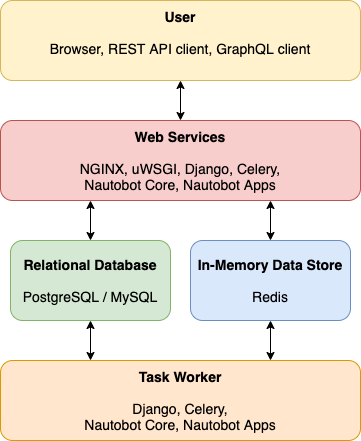
Application Stack
Overview of the Nautobot application stack:
Installation Guide
Prerequisites
- Install pip requirements on the Ansible host:
pip install -r requirements.txt
Role Requirements
Add the following roles to your requirements.yml file:
roles:
  - name: bsmeding.docker
  - name: bsmeding.nautobot_docker
ansible-galaxy install -r requirements.yml
Example Playbook
Since Django 4.0 the CSRF must set correctly including a scheme, please set this according your fqdn url in the nautobot__url variable
---
- name: Install Nautobot
  hosts: [nautobot]
  gather_facts: true
  become: yes
  vars:
    nautobot__url: 'https://cmdb.mydomain.com'
  tasks:
    - name: Check if Docker is installed
      include_role:
        name: bsmeding.docker

    - name: Check if Nautobot is installed
      include_role:
        name: bsmeding.nautobot_docker
After successful installation, Nautobot will run on port
8080by default, with login credentialsadmin/admin.
Configuration Options
Below are key variables for customizing the Nautobot Docker installation. These variables can be added to your playbook or a separate variable file.
General Settings
container_time_zone: Sets the timezone inside the container.-
Default:
'Europe/Amsterdam' -
nautobot__name: Defines the name of the Nautobot Docker container. -
Default:
'nautobot' -
nautobot__image: Specifies the Docker image for Nautobot. -
Default:
'nautobot:stable-py3.12' -
nautobot__custom_image: Specifies a custom Nautobot image - Example:
'bsmeding/nautobot:stable-py3.12'
Python & Ansible Configuration
nautobot__image_python_version: Python version to be used in the container.-
Default:
'3.12' -
nautobot__install_ansible_version: The Ansible version to install in the container. -
Default:
'8.2.0' -
nautobot__install_ansible_collections: List of Ansible collections to install in the container. -
Default:
['ansible.netcommon', 'ansible.utils'] -
nautobot__pip_install_extra_args: Extra arguments forpipinstallations, useful for skipping SSL checks or using a custom PIP server.
Network & Port Configuration
nautobot__port_http: The HTTP port Nautobot will run on.-
Default:
8080 -
nautobot__port_https: The HTTPS port Nautobot will run on if enabled. -
Default:
8444 -
nautobot__allowed_hosts: Specifies which hosts are allowed to access Nautobot. - Default:
'*'
Container & Environment Configuration
nautobot__home: Directory path where Nautobot is installed in the container.-
Default:
"/opt/{{ nautobot__name }}" -
nautobot__number_of_workers: Sets the number of worker processes for handling requests. -
Default:
1 -
nautobot__pause_before_start_worker: Time in seconds to pause before starting workers, useful in migrations. -
Default:
0 -
nautobot__remove_existing_container: Whether to remove an existing container on redeployment. -
Default:
false -
nautobot__pull_image: Whether to pull the latest Docker image on deployment. - Default:
false
User & Permissions Configuration
nautobot__container_uid: User ID for the Nautobot container.-
Default:
999 -
nautobot__container_gid: Group ID for the Nautobot container. -
Default:
998 -
nautobot__directories: List of directories to create with specific permissions. - Example:
nautobot__directories:
  - path: "/opt/nautobot"
    mode: "0760"
    owner: "{{ nautobot__container_uid }}"
    group: "{{ nautobot__container_gid }}"
Superuser Credentials
Important: Change these values in production environments.
nautobot__superuser_name: Username for the default superuser.-
Default:
'admin' -
nautobot__superuser_password: Password for the default superuser. -
Default:
'admin' -
nautobot__superuser_api_token: API token for the superuser, must be 40 characters or fewer. - Example:
"1234567890abcdefghijklmnopqrstuvwxyz0987"
Additional Configuration
Installing Plugins
To install plugins, set the nautobot__plugins variable with plugin configurations. Example:
Please NOTE that plugins are NOT INSTALLED in custom images, only when using Networktocode Docker images!!
nautobot__plugins:
  - plugin_name: nautobot_device_onboarding
    plugin_config: {
      "nautobot_device_onboarding": {
        "default_ip_status": "Active",
        "default_device_role": "onboarding",
      }
    }
  - plugin_name: nautobot-golden-config
    plugin_config: {
      "nautobot_golden_config": {
        "enable_intended": True,
        "sot_agg_transposer": None,
      }
    }
Installing Plugins with Pip Extras
Some plugins require additional dependencies installed via pip extras (e.g., plugin[extra]). Use the plugin_pip_extras key to specify these extras:
nautobot__plugins:
  - plugin_name: nautobot-secrets-providers
    plugin_pip_extras: '[onepassword]'
    plugin_config: {
      "nautobot_secrets_providers": {
        # plugin configuration here
      }
    }
This will install nautobot-secrets-providers[onepassword] via pip, while Nautobot will still import the module as nautobot_secrets_providers.
Using Environment Variables in Plugin Configuration
When plugin configuration requires environment variables (e.g., for secrets), use the special marker __ENV_VAR__<VARIABLE_NAME>__ in your YAML. The template will automatically convert this to Python code os.environ.get("<VARIABLE_NAME>") in the generated configuration file.
Example with 1Password Secrets Provider:
nautobot__env:
  OP_SERVICE_ACCOUNT_TOKEN: !vault |
    $ANSIBLE_VAULT;1.1;AES256
    # ... vault encrypted token ...

nautobot__plugins:
  - plugin_name: nautobot-secrets-providers
    plugin_pip_extras: '[onepassword]'
    plugin_config: {
      "nautobot_secrets_providers": {
        "one_password": {
          "token": "__ENV_VAR__OP_SERVICE_ACCOUNT_TOKEN__",
          "vaults": {
            "AutomationVault": {
              "token": "__ENV_VAR__OP_SERVICE_ACCOUNT_TOKEN__",
            },
          },
        },
      },
    }
This will generate the following in nautobot_config.py:
PLUGINS_CONFIG = {
    "nautobot_secrets_providers": {
        "one_password": {
            "token": os.environ.get("OP_SERVICE_ACCOUNT_TOKEN"),
            "vaults": {
                "AutomationVault": {
                    "token": os.environ.get("OP_SERVICE_ACCOUNT_TOKEN"),
                }
            }
        }
    }
}
Note: Make sure the environment variable is set in nautobot__env so it's available to the Nautobot container at runtime.
Add GraphQL queries so that the variables can be retreived in the Jinja templating (Extensibility -> GraphQL Queries)
Examplje GraphQL
query ($device_id: ID!) {
  device(id: $device_id) {
    config_context
    hostname: name
    position
    serial
    primary_ip4 {
      id
      primary_ip4_for {
        id
        name
      }
    }
    tenant {
      name
    }
    tags {
      name
      slug
    }
    device_role {
      name
    }
    platform {
      name
      slug
      manufacturer {
        name
      }
      napalm_driver
    }
    site {
      name
      slug
      vlans {
        id
        name
        vid
      }
      vlan_groups {
        id
      }
    }
    interfaces {
      description
      mac_address
      enabled
      name
      ip_addresses {
        address
        tags {
          id
        }
      }
      connected_circuit_termination {
        circuit {
          cid
          commit_rate
          provider {
            name
          }
        }
      }
      tagged_vlans {
        id
      }
      untagged_vlan {
        id
      }
      cable {
        termination_a_type
        status {
          name
        }
        color
      }
      tagged_vlans {
        site {
          name
        }
        id
      }
      tags {
        id
      }
    }
  }
}
Custom Python or OS Packages
nautobot__extra_pip_packages: Add additional Python packages needed in the container.
Migrating from v1 to v2
If migrating from Nautobot v1 to v2, set nautobot__pause_before_start_worker to at least 600 seconds to allow the database to migrate before starting workers.
Version Matrix
Current defaults and recommendations:
| Component | Current default | Notes |
|---|---|---|
| Nautobot image | nautobot:stable-py3.12 |
Good default for current upstream images. |
| Python in image | 3.12 |
Matches default Nautobot image tag. |
| Redis image | redis:alpine |
Works, but consider pinning major version (for example redis:7-alpine) for reproducibility. |
| PostgreSQL image | postgres:13 |
PostgreSQL 13 is EOL; plan upgrade to postgres:15 or postgres:16 after validation. |
| Ansible in container | 8.2.0 |
Old; plan to test and move to a newer supported major version. |
Recommendation: treat PostgreSQL and Ansible updates as planned changes and validate with Molecule/CI before changing role defaults in production.
Celery workers
To increase the workers, change the variable nautobot__number_of_workers to desired workers, please note these will run on the same host.
Check if celery workers are online:
Exec into nautobot containers: docker exec -it nautobot /bin/bash
Then load settings: export DJANGO_SETTINGS_MODULE=nautobot_config
Then execute: celery -A nautobot.core.celery:app status
Example:
nautobot@fc53117bd332:~$ export DJANGO_SETTINGS_MODULE=nautobot_config

celery -A nautobot.core.celery:app status

->  node1@worker1: OK

1 node online.

nautobot@fc53117bd332:~$
Error Handling
If the stack doesn’t start after a hard shutdown (e.g., due to Redis corruption), you might see an error message about the appendonly.aof file. Use the following command to fix this issue:
sudo redis-check-aof --fix appendonly.aof
For additional troubleshooting, check the Docker logs and inspect paths with docker inspect nautobot-redis.
By following this guide, you’ll have a fully configured Nautobot deployment in Docker using Ansible.